
Configuring Laravel Crontab and Supervisor Queue on Server
Set up Crontab and Supervisor Queue on Server : Laravel Technology
Learn how to configure Laravel Scheduler with crontab and run Laravel Queue Worker automatically using Supervisor on a Linux server.
Intro:
When deploying a Laravel application to a server, two important parts are often missed:
- Laravel Scheduler will not run automatically unless crontab is configured.
- Laravel Queue Worker will not keep running in the background unless you use Supervisor or another process monitor.
Laravel Scheduler only needs one cron entry on the server. That cron entry runs php artisan schedule:run every minute, while the actual scheduled tasks are defined inside the Laravel application.
For queues, Laravel recommends using queue:work and keeping it alive with a process monitor such as Supervisor.
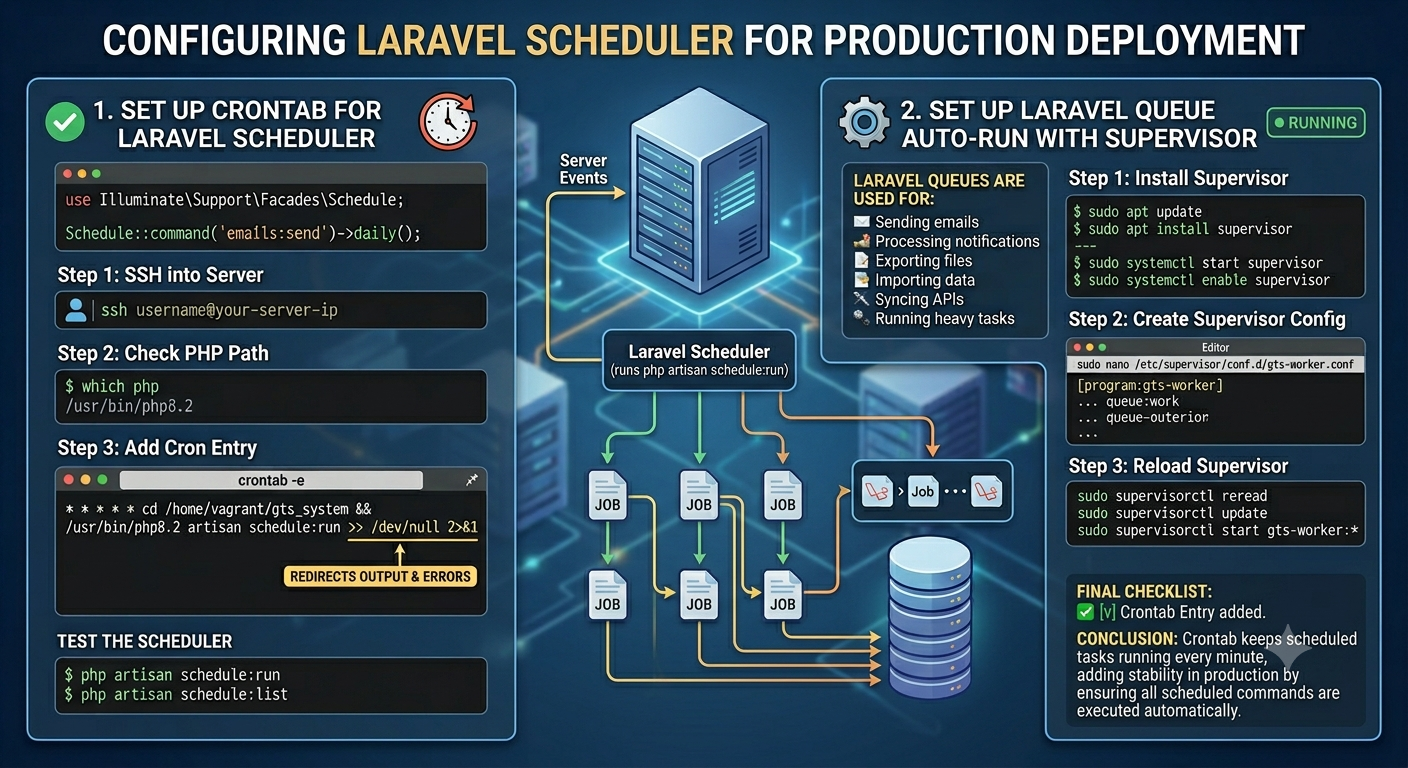
1. Set Up Crontab for Laravel Scheduler
Laravel Scheduler lets you define scheduled tasks inside your Laravel code.
Example:
use Illuminate\Support\Facades\Schedule;

Schedule::command('emails:send')->daily();
But to make the scheduler run on your server, you need a cron job.
Step 1: SSH into your server
ssh username@your-server-ip
Step 2: Check your PHP path
which php
Example result:
/usr/bin/php
Or for a specific PHP version:
/usr/bin/php8.2
Step 3: Add the cron entry
There are two common ways.
Option 1: Use the current user crontab
crontab -e
Add:
* * * * * cd /path/to/your-project && /usr/bin/php artisan schedule:run >> /dev/null 2>&1
Example:
* * * * * cd /home/vagrant/gts_system && /usr/bin/php8.2 artisan schedule:run >> /dev/null 2>&1
Option 2: Edit /etc/crontab
sudo nano /etc/crontab
For /etc/crontab, include the username:
* * * * * username cd /path/to/your-project && /usr/bin/php artisan schedule:run >> /dev/null 2>&1
Example:
* * * * * root cd /home/vagrant/gts_system && /usr/bin/php8.2 artisan schedule:run >> /dev/null 2>&1
Important note
This part:
>> /dev/null 2>&1
redirects both output and errors to /dev/null.
Test the Scheduler
Run:
cd /path/to/your-project
php artisan schedule:run
Or list scheduled tasks:
php artisan schedule:list
2. Set Up Laravel Queue Auto-run with Supervisor
Laravel queues are used for background jobs such as:
- Sending emails
- Processing notifications
- Exporting files
- Importing data
- Syncing APIs
- Running heavy tasks
If you run:
php artisan queue:work
directly in a terminal, the worker will stop when the terminal closes.
That is why production servers should use Supervisor to keep the worker running in the background.
Step 1: Install Supervisor
sudo apt update
sudo apt install supervisor
Start Supervisor:
sudo systemctl start supervisor
Enable Supervisor on system startup:
sudo systemctl enable supervisor
Step 2: Create a Supervisor config file
sudo nano /etc/supervisor/conf.d/laravel-worker.conf
You can name the config file based on your project:
sudo nano /etc/supervisor/conf.d/gts-worker.conf
Step 3: Configure the worker
Basic config:
[program:laravel-worker]
process_name=%(program_name)s_%(process_num)02d
directory=/path/to/your-project
command=/usr/bin/php artisan queue:work --sleep=3 --tries=3 --timeout=90
autostart=true
autorestart=true
user=your-username
numprocs=1
redirect_stderr=true
stdout_logfile=/path/to/your-project/storage/logs/worker.log
stopwaitsecs=3600
Example:
[program:gts-worker]
process_name=%(program_name)s_%(process_num)02d
directory=/home/vagrant/gts_system
command=/usr/bin/php8.2 artisan queue:work --sleep=3 --tries=3 --timeout=90
autostart=true
autorestart=true
user=root
numprocs=1
redirect_stderr=true
stdout_logfile=/home/vagrant/gts_system/storage/logs/worker.log
stopwaitsecs=3600
Step 4: Reload Supervisor
sudo supervisorctl reread
sudo supervisorctl update
Start the worker:
sudo supervisorctl start gts-worker:*
Check status:
sudo supervisorctl status
Queue:work vs Queue:listen
Some guides use:
php artisan queue:listen
However, for production, prefer:
php artisan queue:work
queue:listen can reload code changes automatically, but Laravel docs note that it is significantly less efficient than queue:work.
Recommended setup:
- Development:
queue:listenis acceptable - Production:
queue:work+ Supervisor - After deployment: run
php artisan queue:restart
php artisan queue:restart
Supervisor will restart the worker after it exits safely.
Final Checklist
After setup, check:
php artisan schedule:list
php artisan schedule:run
sudo supervisorctl status
tail -f storage/logs/worker.log
tail -f storage/logs/laravel.log
If the queue worker is not running, verify:
- Project path
- PHP binary path
- File permissions
.envqueue connection- Supervisor config
- Worker log
Conclusion
When deploying Laravel to a server, you should configure both:
- Crontab for Laravel Scheduler
- Supervisor for Laravel Queue Worker
Crontab keeps scheduled tasks running every minute.
Supervisor keeps long-running queue workers alive in the background.
These two small configurations make Laravel applications much more stable in production.
CTA
If your Laravel app is already on a VPS or production server, check whether schedule:run is configured in crontab and queue:work is managed by Supervisor. Missing either one can cause scheduled tasks or queued jobs to silently stop working.